
Self-service that takes pressure off your busiest hour
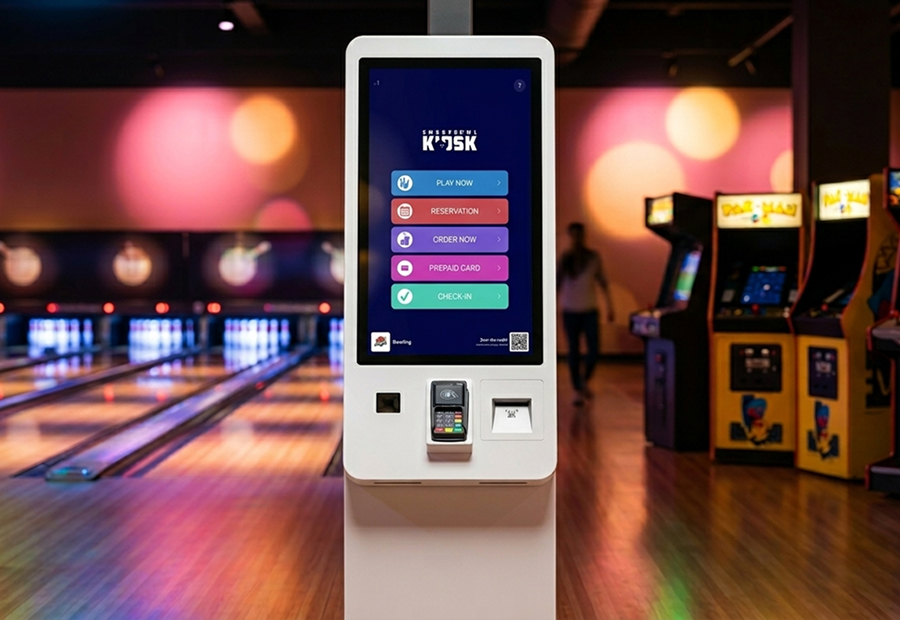
A self-service Kiosk with barcode scanner and integrated POS. Walk-ins start playing without queueing at the front desk: bookings, food orders, prepaid cards and check-ins, all handled in a few taps. Your staff stays where you need them: with the guests.
Every way in, on one screen
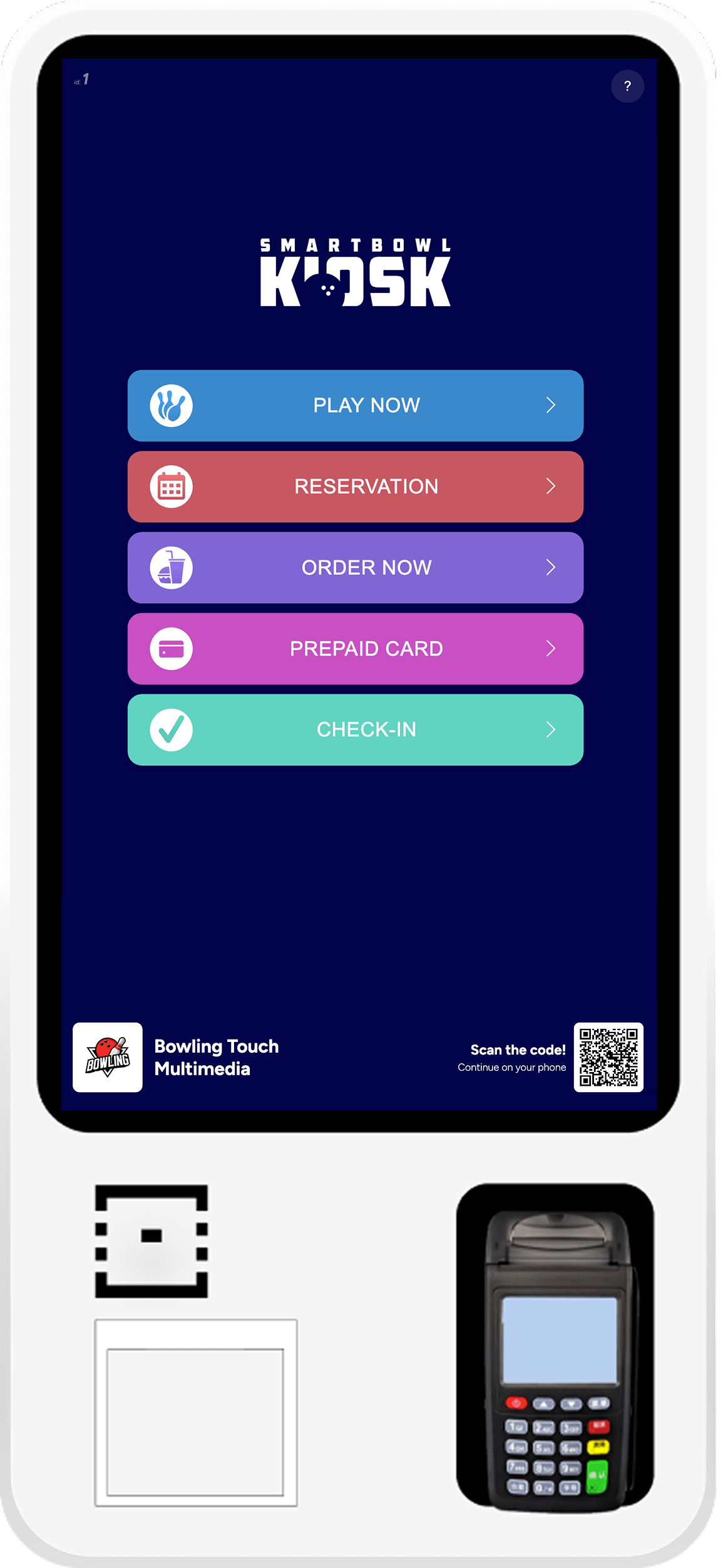
Self-service for play, booking, ordering, prepaid cards and check-in.
Each entry point is one tap away, plus a QR to continue on the guest's own phone, even after they walk away from the Kiosk.
Walk-in to lane, without the queue
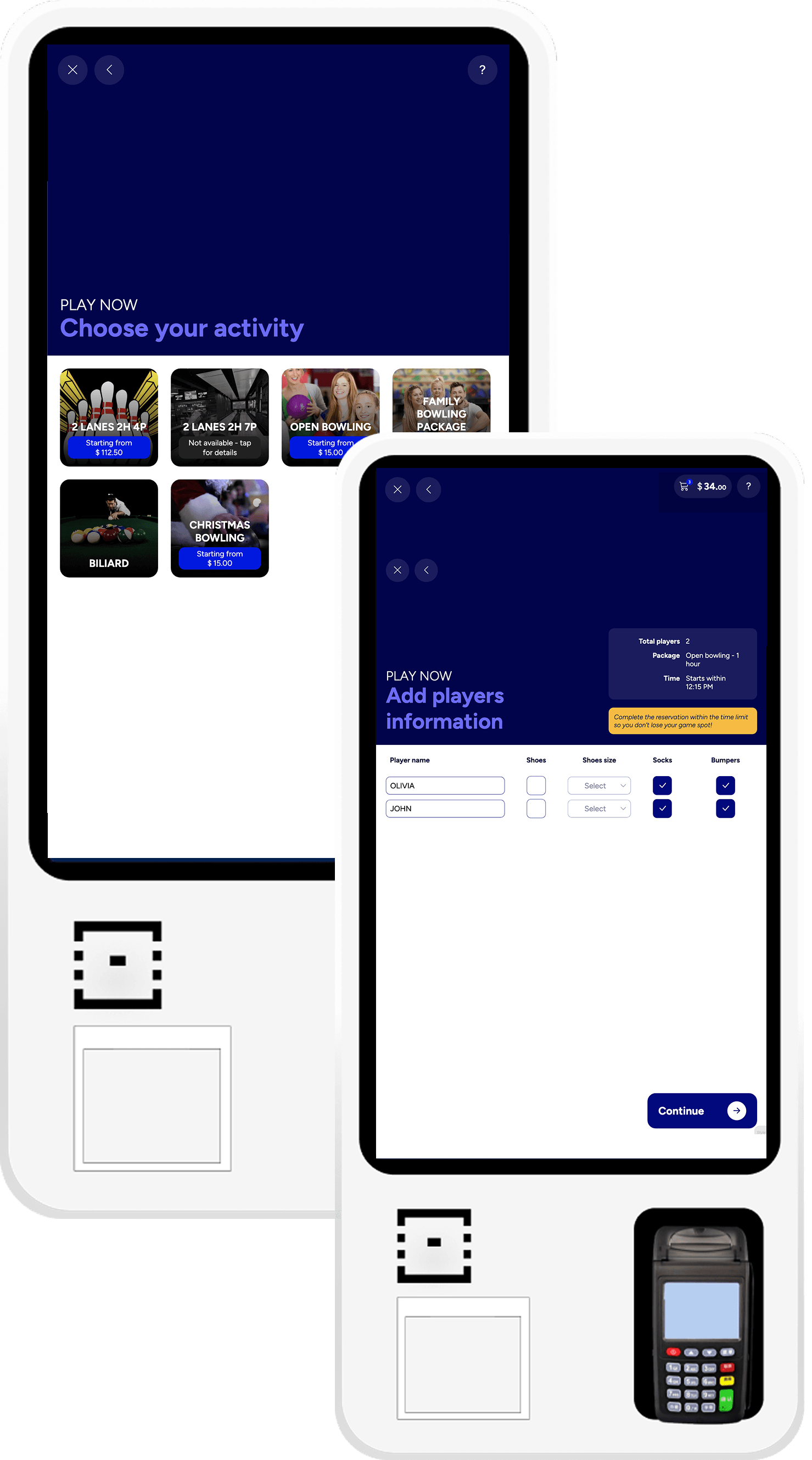
This is the path for walk-in customers with no reservation who want to start right away. The totem shows in real time only the activities that are actually available: no surprises and no queues at the front desk.
The customer picks the players, chooses the package (bowling, billiards, laser or any activity you've configured) and optionally adds food and drinks. Pays on the totem POS or at the FrontDesk register: the lane activates automatically.
Booking taken. Without taking your time
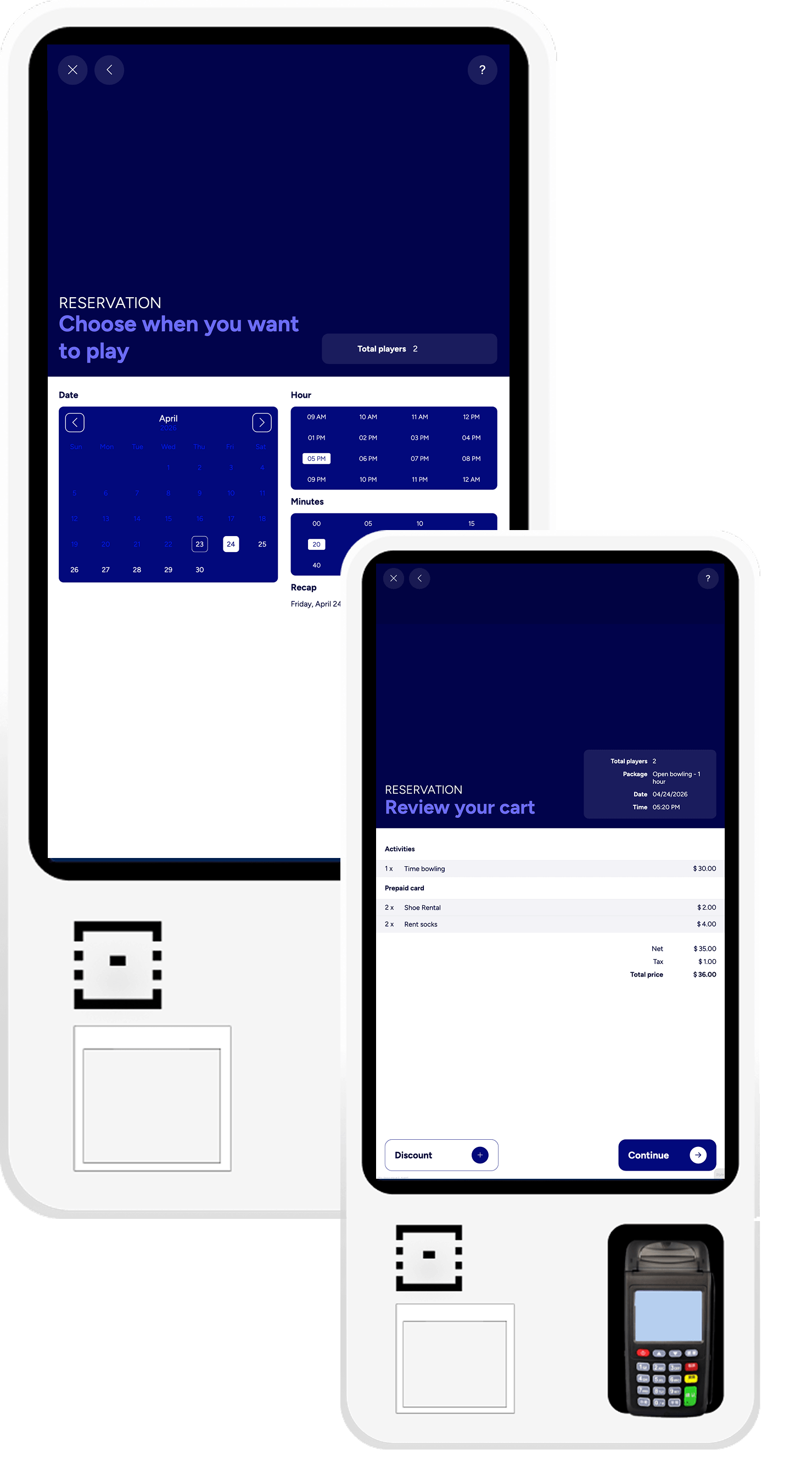
From the Kiosk or from the phone, same outcome, zero front-desk minutes.
Calendar by day, hour and minute. Players by category. A short contact form for SMS and email confirmation. The booking lands on your FrontDesk in real time, exactly like one made at the counter.

Food and drinks, ordered straight from the Kiosk
The customer can order food and drinks from the totem or from the phone: menu split into categories, every item with add-ons, variants and notes for special requests.
Chooses delivery to the counter, the table or the lane, or adds the items to an existing reservation via QR or code.
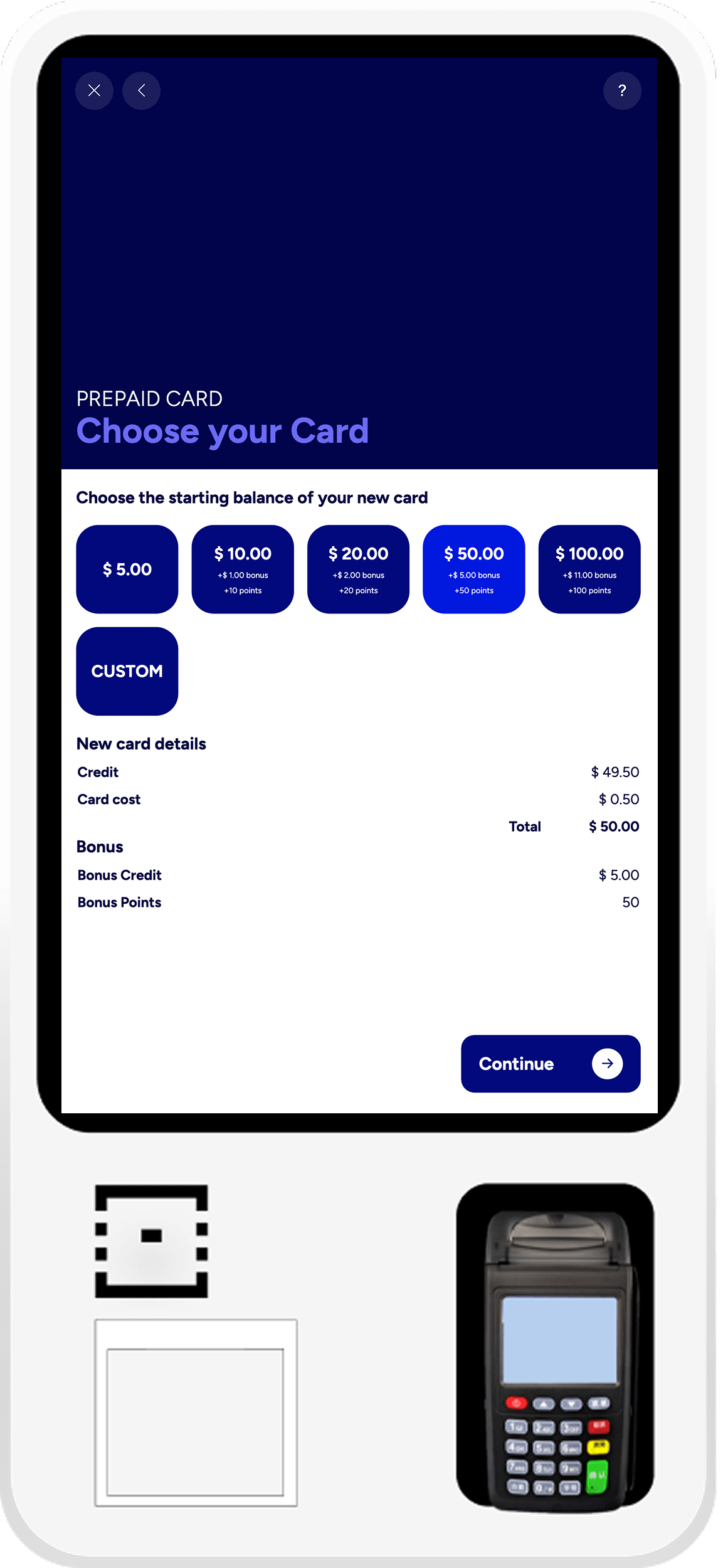
Easy card activation, directly from the Kiosk
The front desk hands over the physical card, then the customer activates it at the totem: a preset amount with credit, bonus and points already configured in SmartBowl Cloud, or a custom amount.
Clear summary with loaded credit, activation fee and bonuses, payment on the integrated POS and the card is activated instantly, ready to play or order.
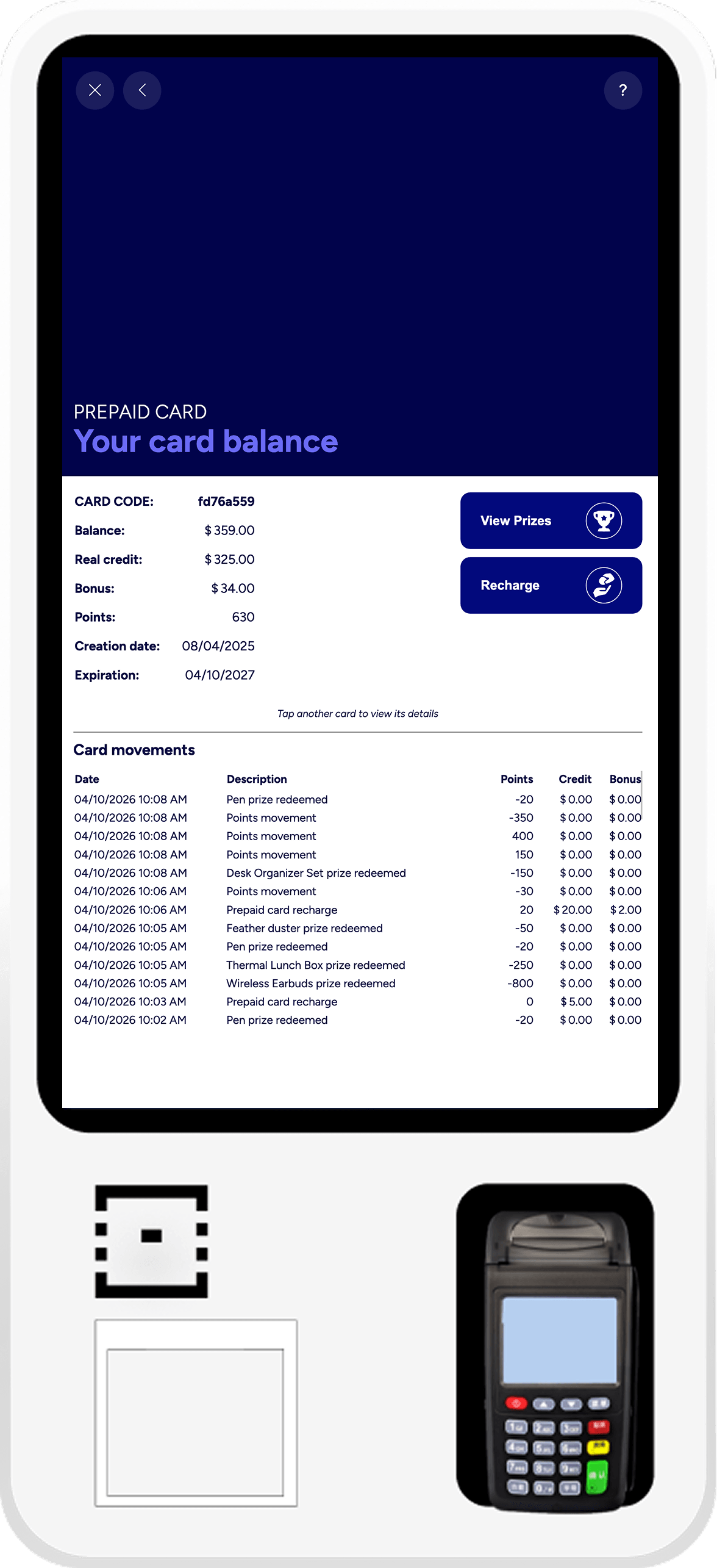
One tap, the full picture
Card on the NFC reader: balance, bonus, points, expiration, full history.
Two clear actions: Recharge or View Prizes. With another card on the reader, the Kiosk switches to the new details instantly.
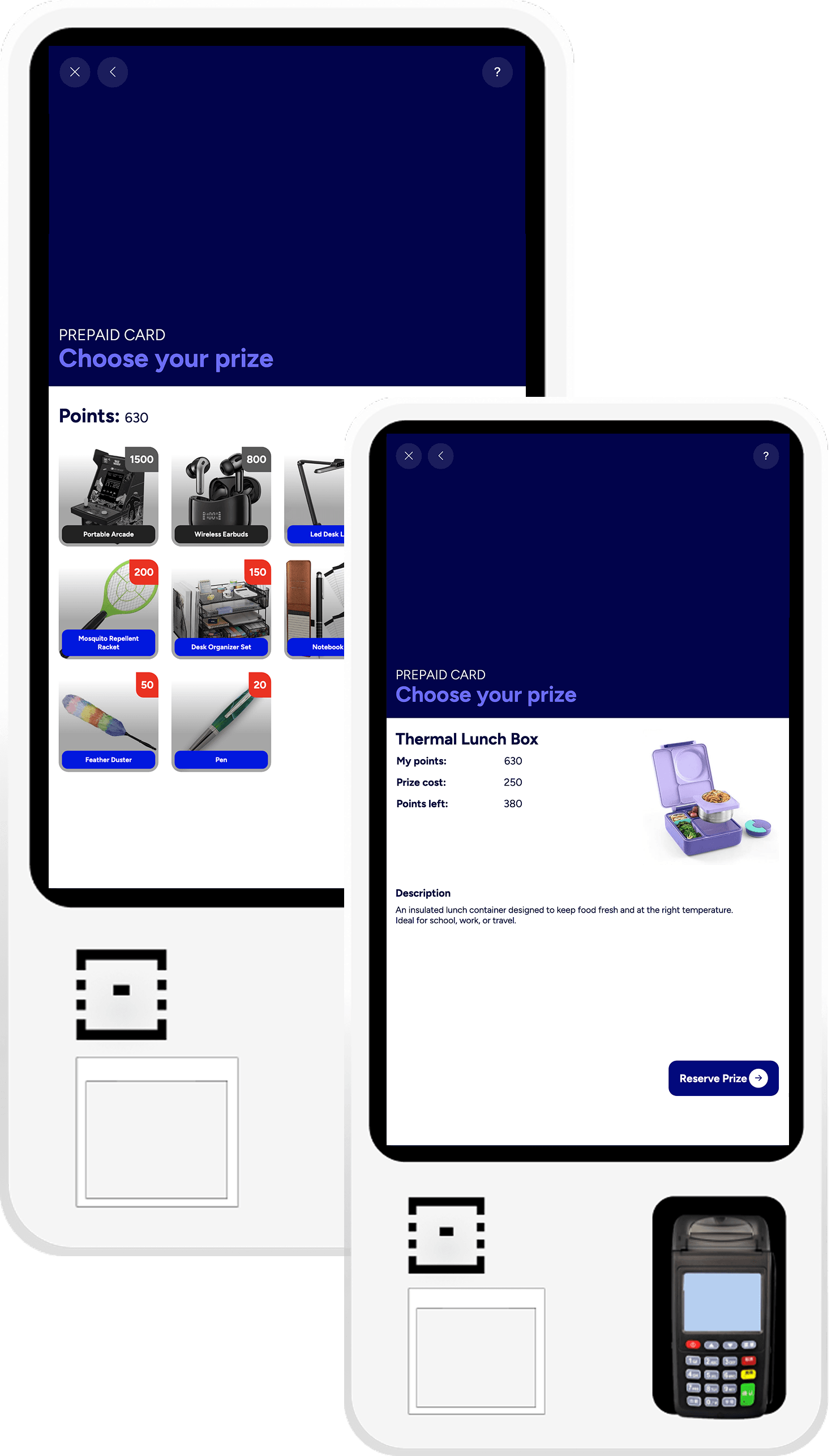
A prize catalogue your guests want to use
From their card the customer opens the prize catalogue: a grid with image, name and points required, managed from SmartBowl Cloud. Items out of stock or beyond available points stay greyed out.
A tap on a prize, then on Reserve Prize: the customer picks it up at the counter and staff find the reservation already logged on the FrontDesk.
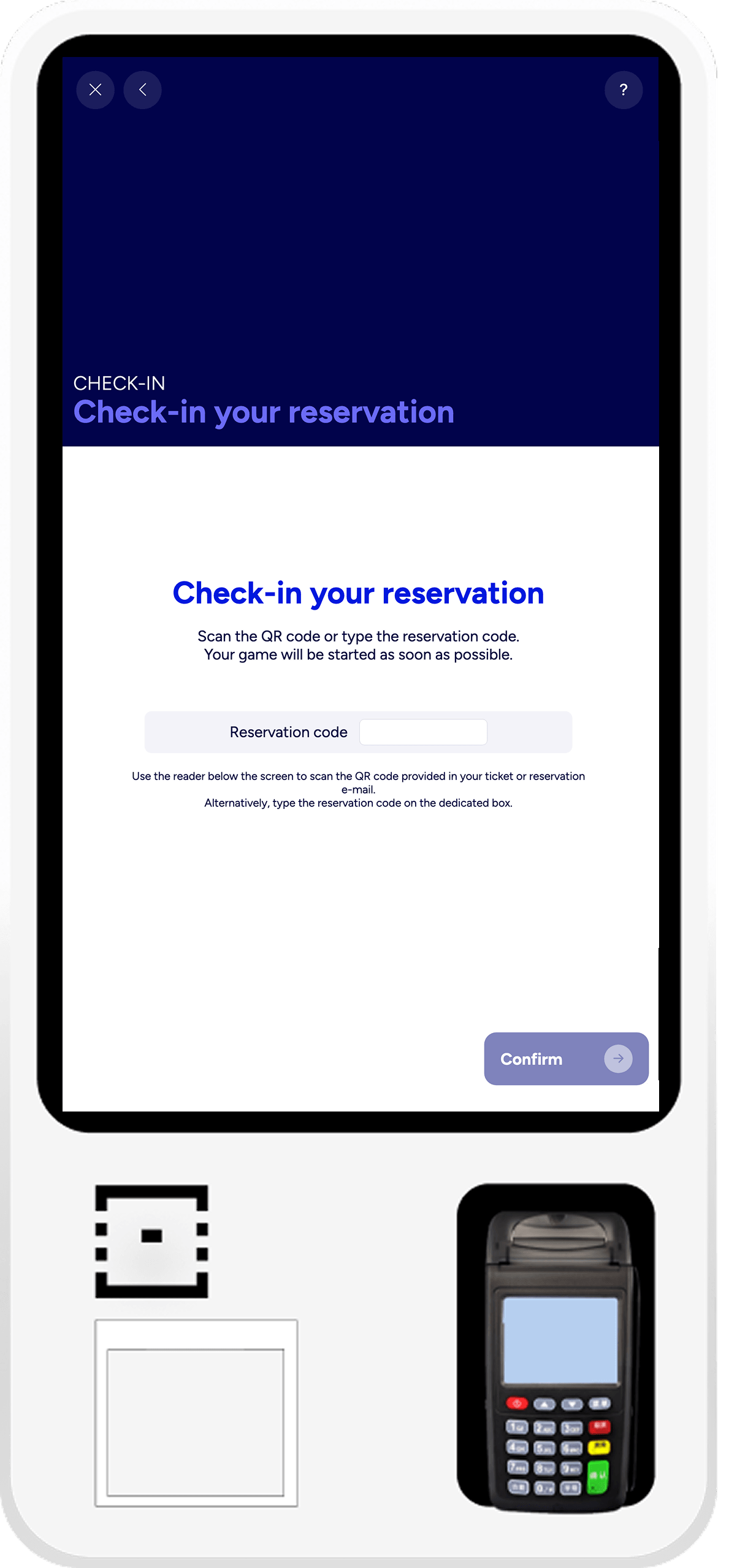
Reservation confirmed in a tap
The guest scans the QR from the confirmation or types the code.
Reservation validated, lane assigned automatically. If everything's booked, the guest joins a priority waiting list and starts the moment a lane frees up.
Part of the SmartBowl ecosystem